
As a facilitator or team lead, you manage the seats that come with your Sit Daily Outdoors Group Sessions. All of this happens through your Account page on taratigerbrown.com.
Background
Your plan is “Sit Group Sessions” – a group account with a fixed number of seats you purchased. Each client (or team member) you add uses one seat and access to the program.
Steps
1. Log in
Go to taratigerbrown.com. In the top-right menu, click Account Login. Enter your username and password if prompted.

2. Open your account
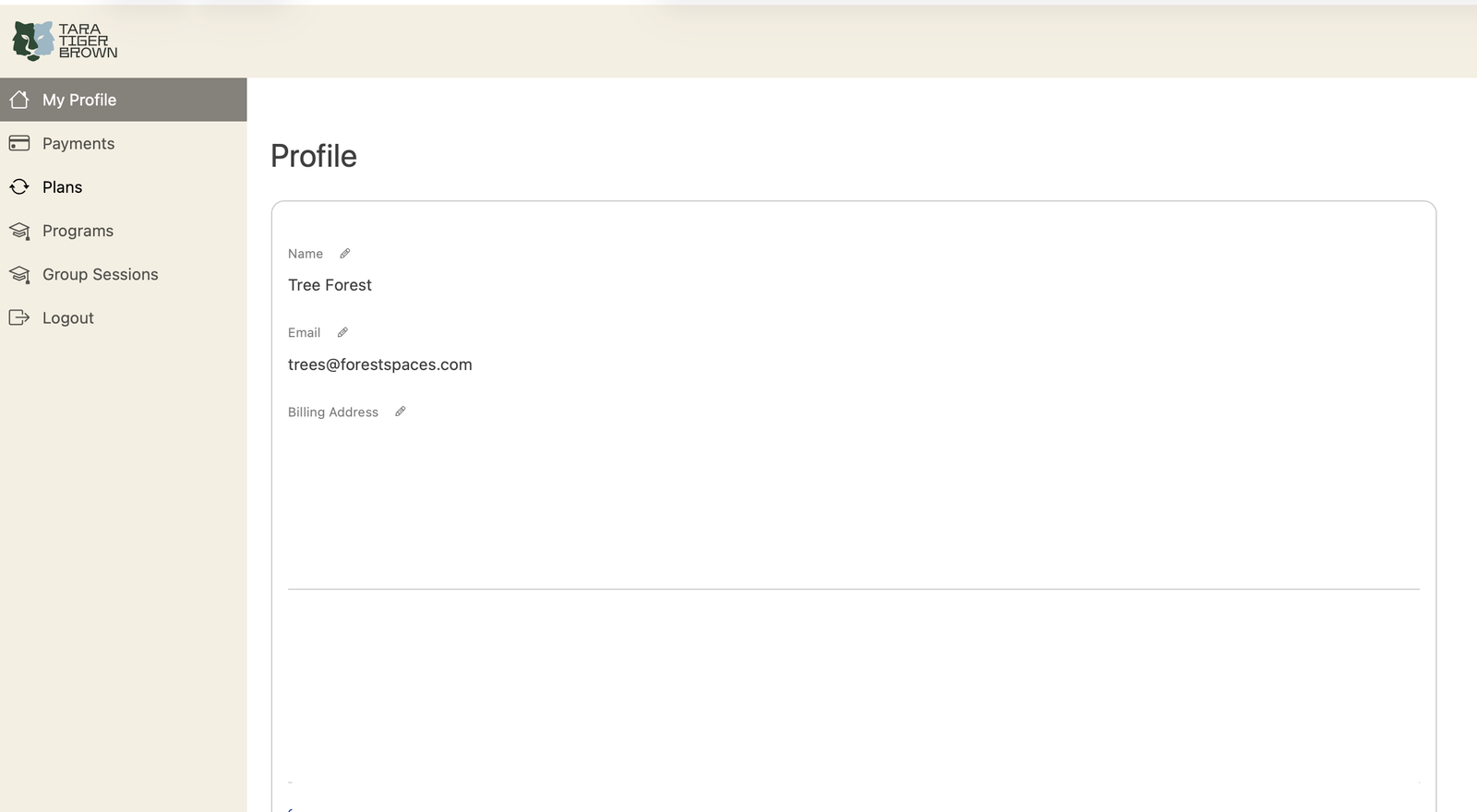
After login you land on My Profile. The left menu shows: My Profile, Payments, Plans, Programs, Group Sessions, Logout.
3. Go to Plans
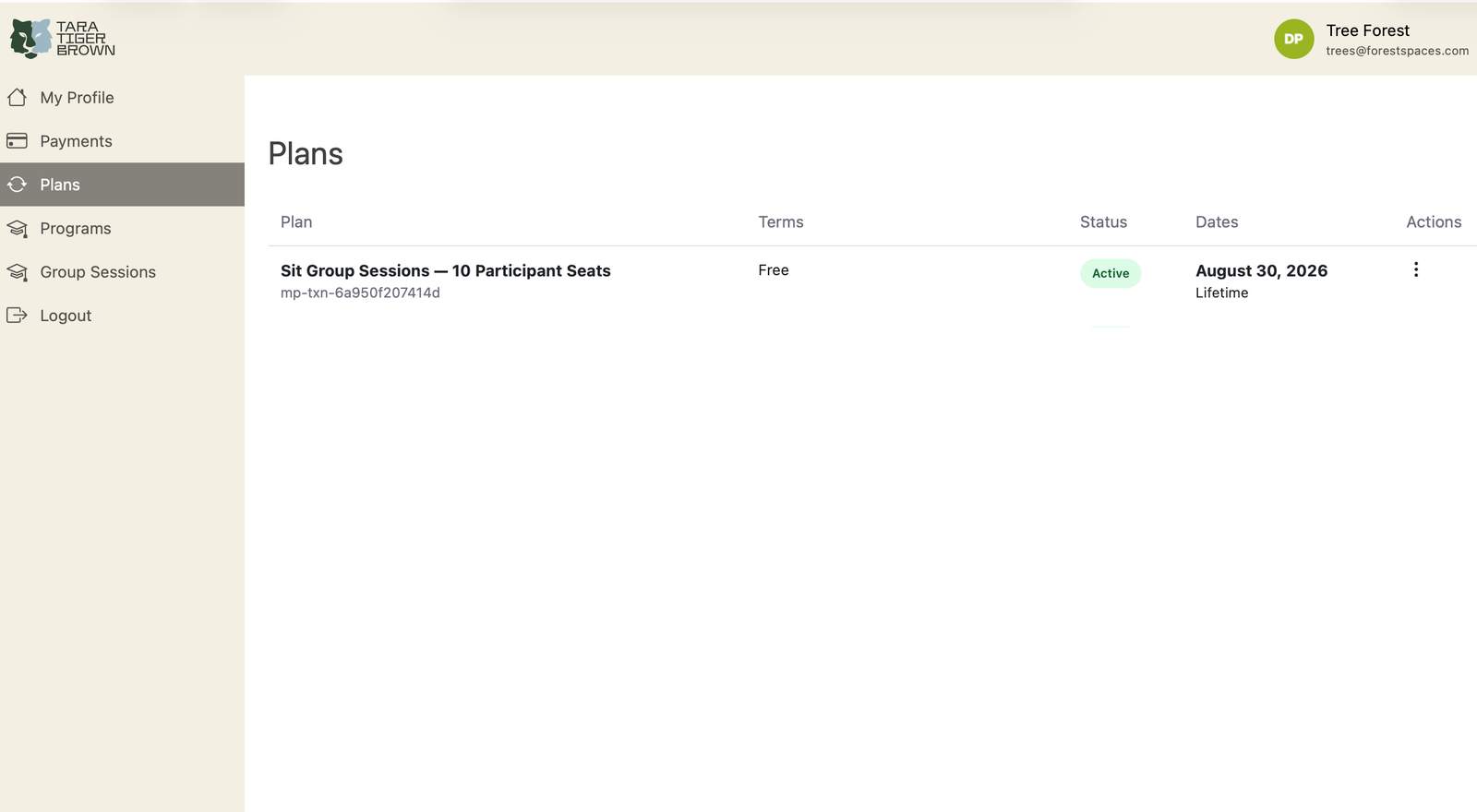
Click Plans in the left menu. The list shows each active plan with columns Plan / Terms / Status / Dates / Actions.
4. Open the plan’s action menu
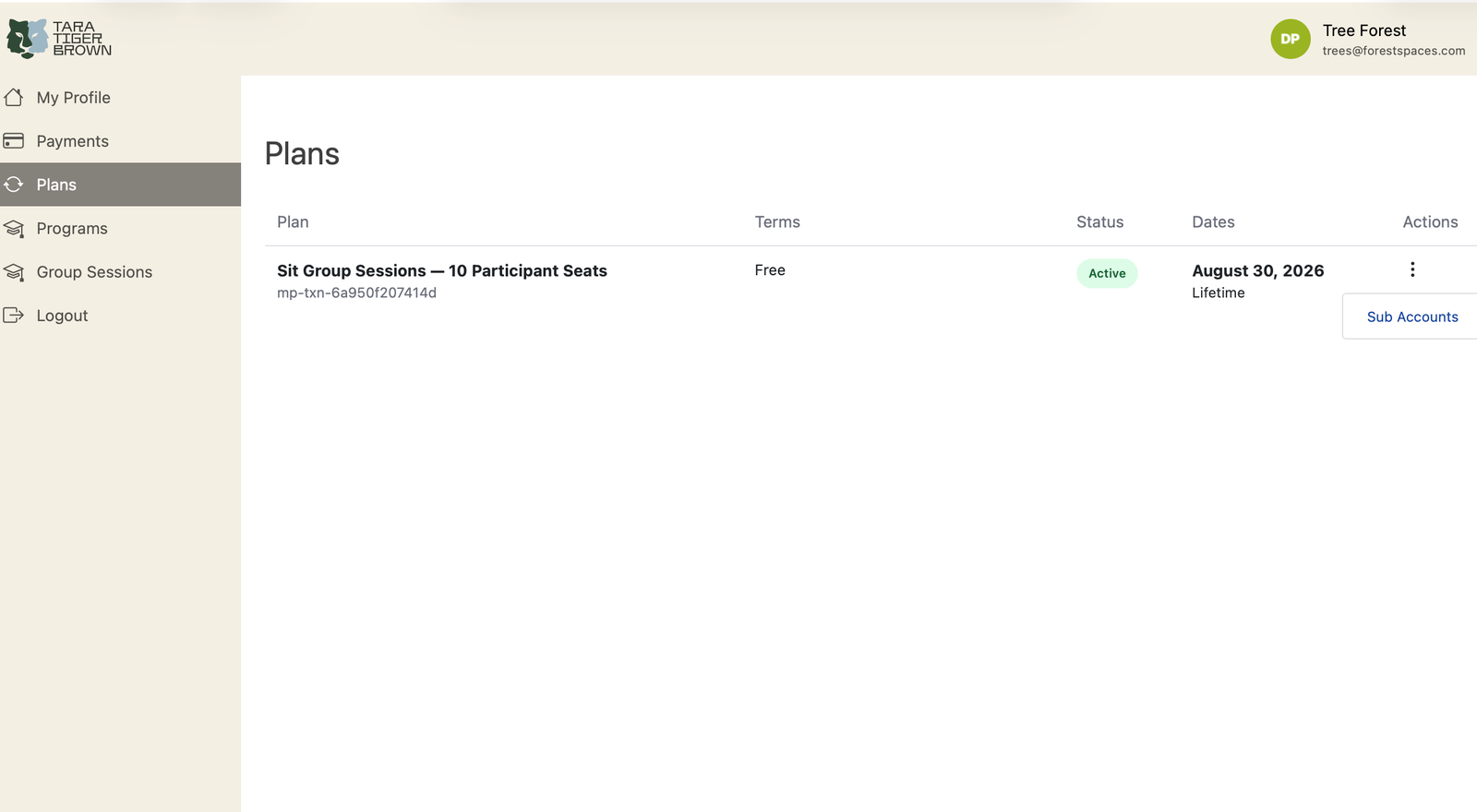
On the row “Sit Group Sessions — [number purchased] Participant Seats”, click the ⋮ (three-dot) icon in the Actions column. A Sub Accounts link appears.
5. Open Sub Accounts
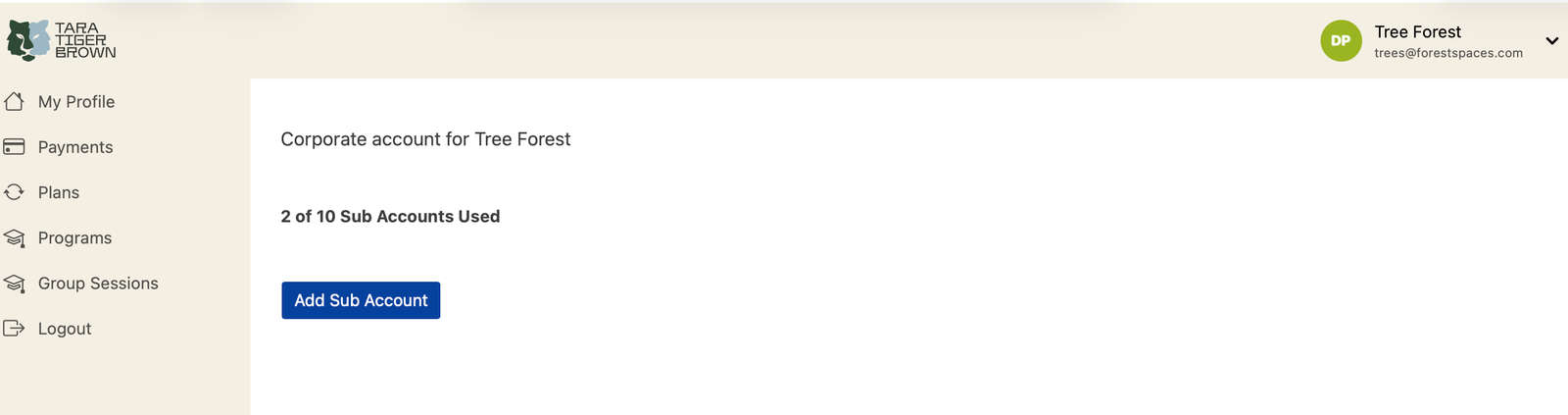
Click Sub Accounts. The page shows:
- “Corporate account for [your name]”
- “X of [number purchased] Sub Accounts Used“
- an Add Sub Account button
- a search box
- a Signup URL — an auto-enroll link. Anyone who signs up through it is added to your account and uses a seat. Keep it private.
6. Open the Add Sub Account form
Click Add Sub Account. The form has:
- Existing Username — use this if the client or team member already has an account on the site
- — OR —
- First Name, Last Name
- Send NEW members the welcome email — checkbox, off by default. We recommend sending this email.
- Sign Up for the Newsletter — checkbox, on by default
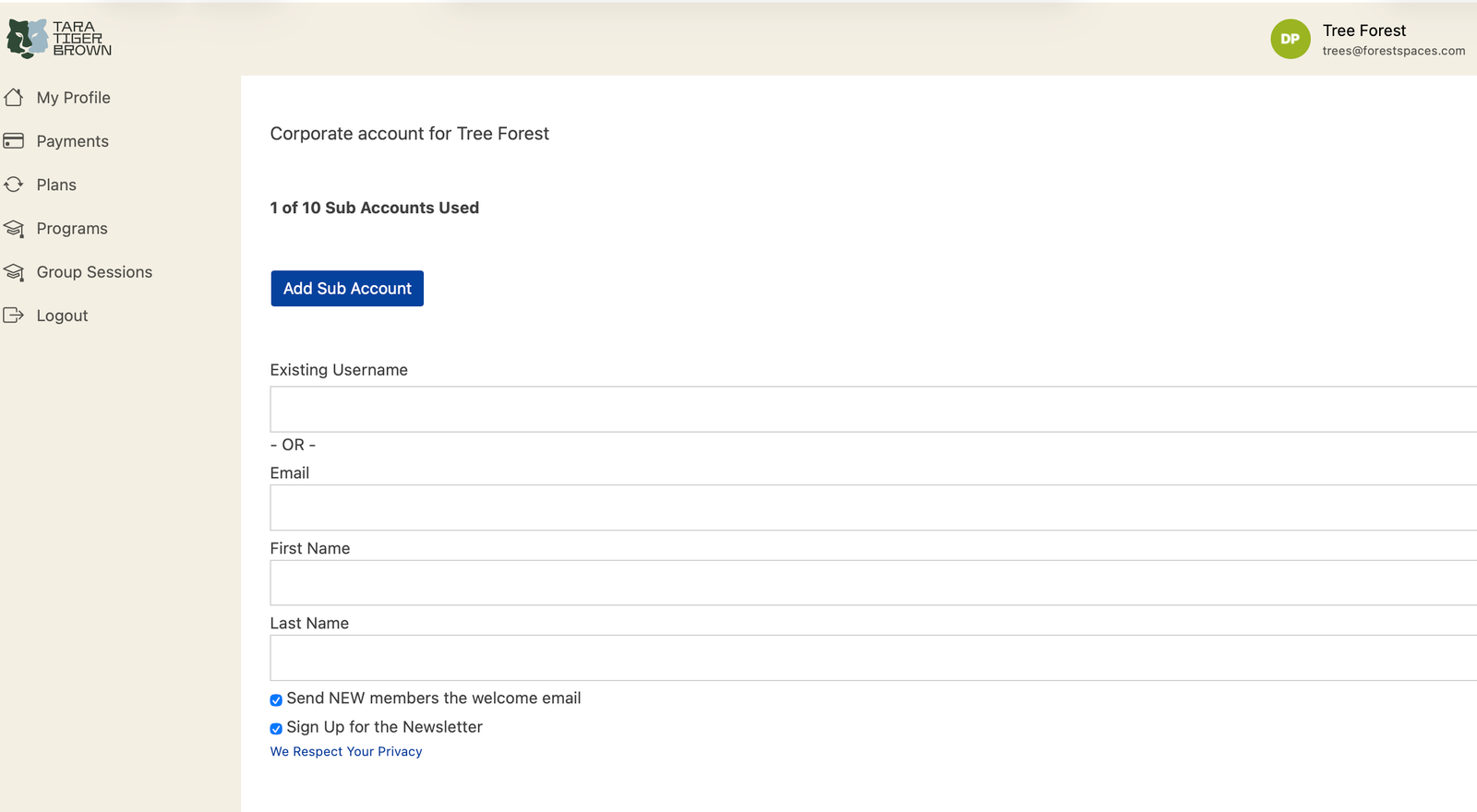
7. Fill in the client information
Enter the client or team member email (or their existing username if they already have an account). First and last name are optional. Check Send NEW members the welcome email if you want the client to get login details automatically.
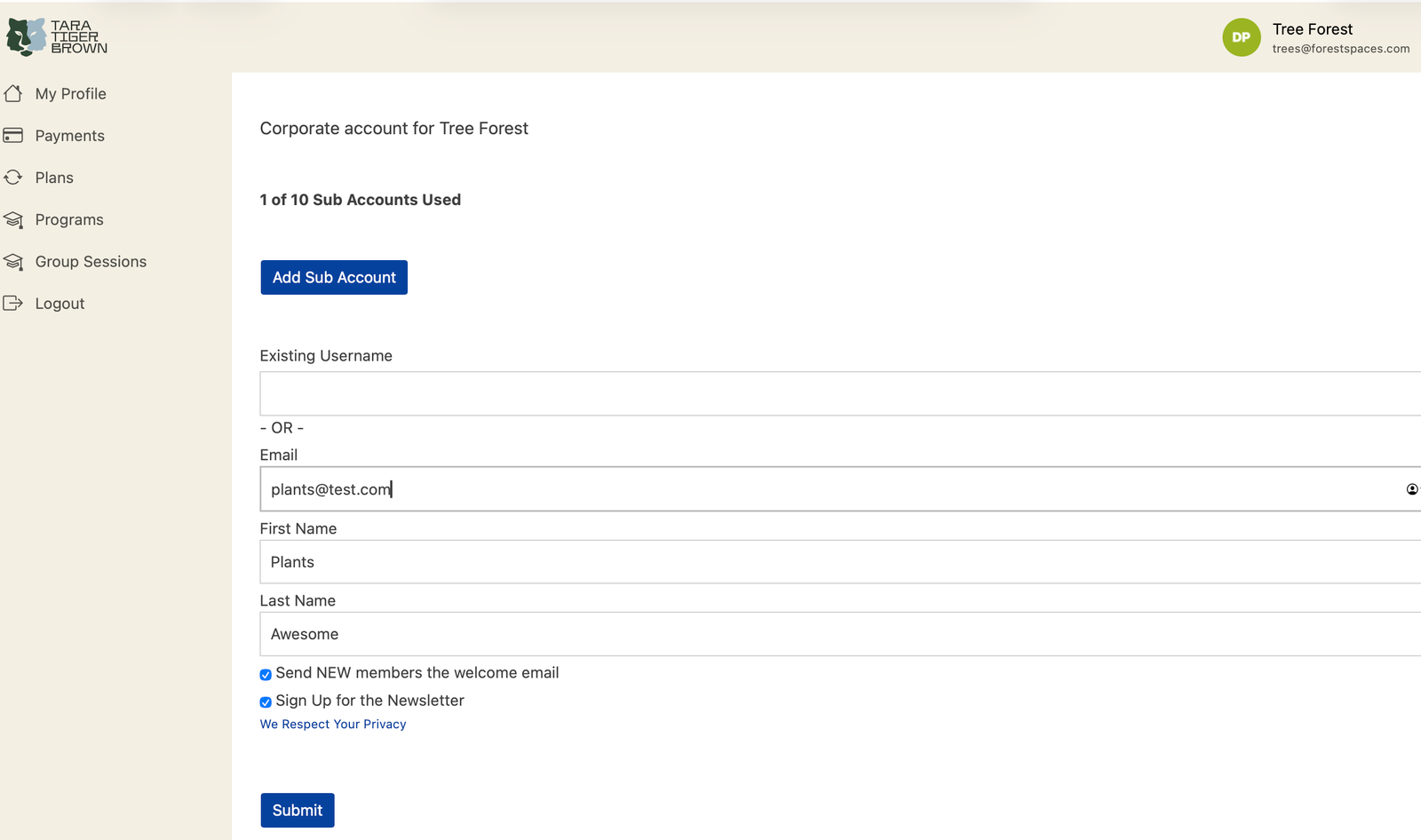
8. Submit
Click Submit.
If the email already belongs to a user on the site, you get: Sorry, that email address is already used! — no seat is used. Put the client or team member’s existing username in the Existing Username field instead, or use a different email.
9. Confirm
On success you see “You successfully added a sub account”, the counter moves to X of 10, and the client appears in the table: Username / Email / First Name / Last Name / Last Login / Logins / Actions (Remove, Program Progress).
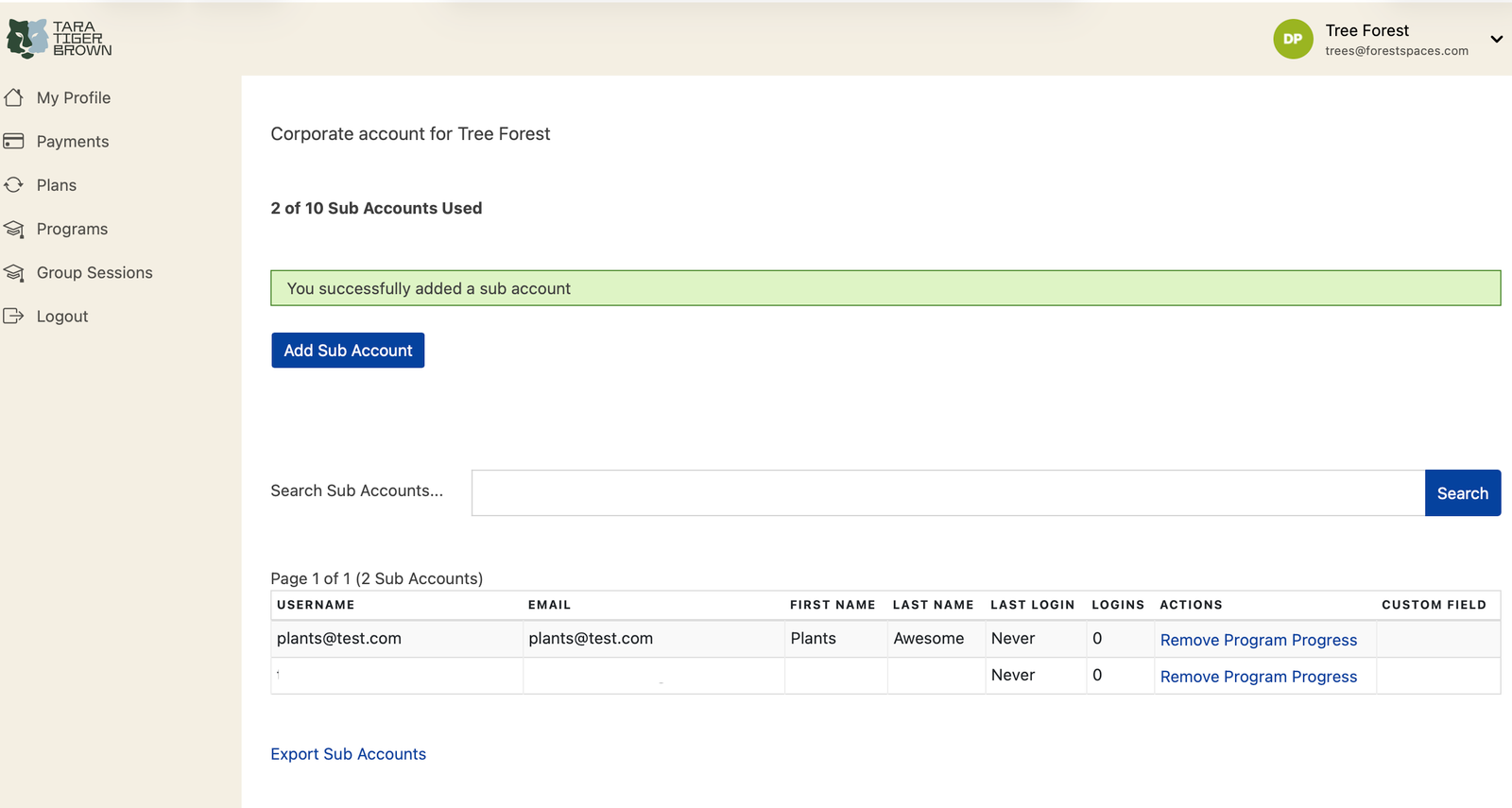
Managing seats afterward
- Free a seat: click Remove next to the client or team member on the Sub Accounts page.
- Seat limit: If you reach the limit for the number of seats you purchased, the form will not add more until a seat is freed.
- Export: Export Sub Accounts downloads the current list as CSV.
- Check a client or team member’s progress: Program Progress next to their row.
